Network Connectivity Troubleshooting Lab
This lab simulates multiple real-world help desk scenarios involving network connectivity issues. Each case demonstrates how to diagnose, test, and resolve problems using common Windows tools and commands.
Environment
- Windows 11 virtual machine (client)
- Host system or router for connectivity tests
- PowerShell and Command Prompt for diagnostics
- Event Viewer for log review
Scenario 1: Wrong DNS Configuration
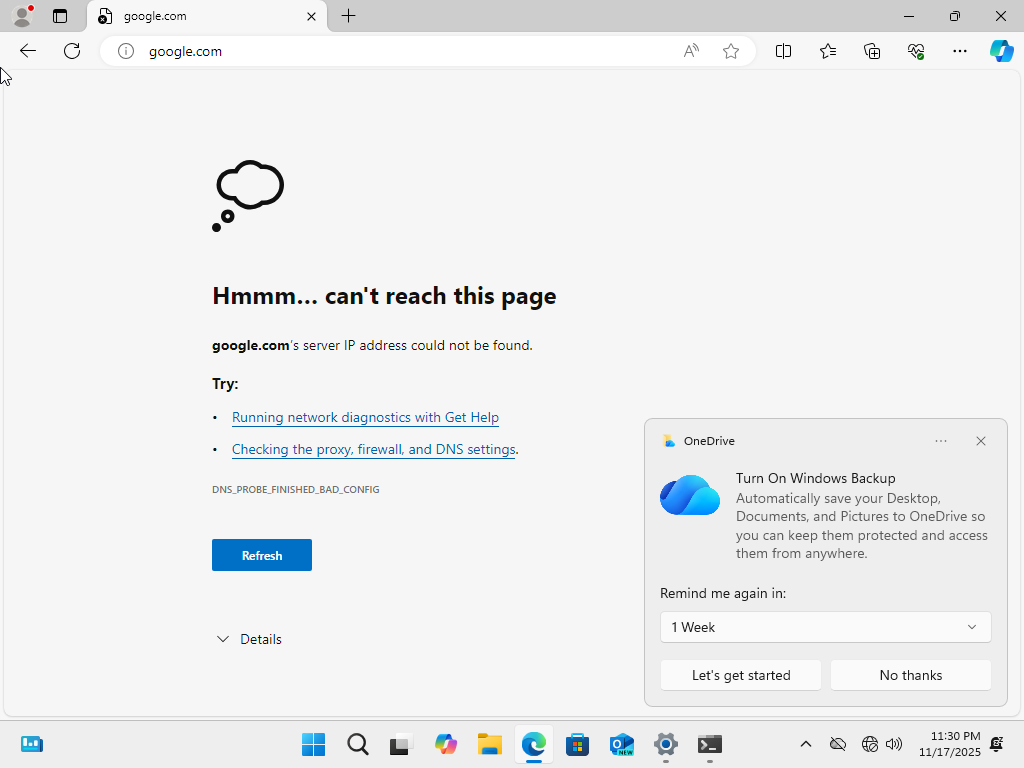
Problem: User is connected to Wi-Fi but cannot browse the web.
🎥 Walkthrough Video
Watch a full walkthrough of the AD lab below:
Step by Step Diagnosis:
🛠️ Test Theory to Confirm the Problem
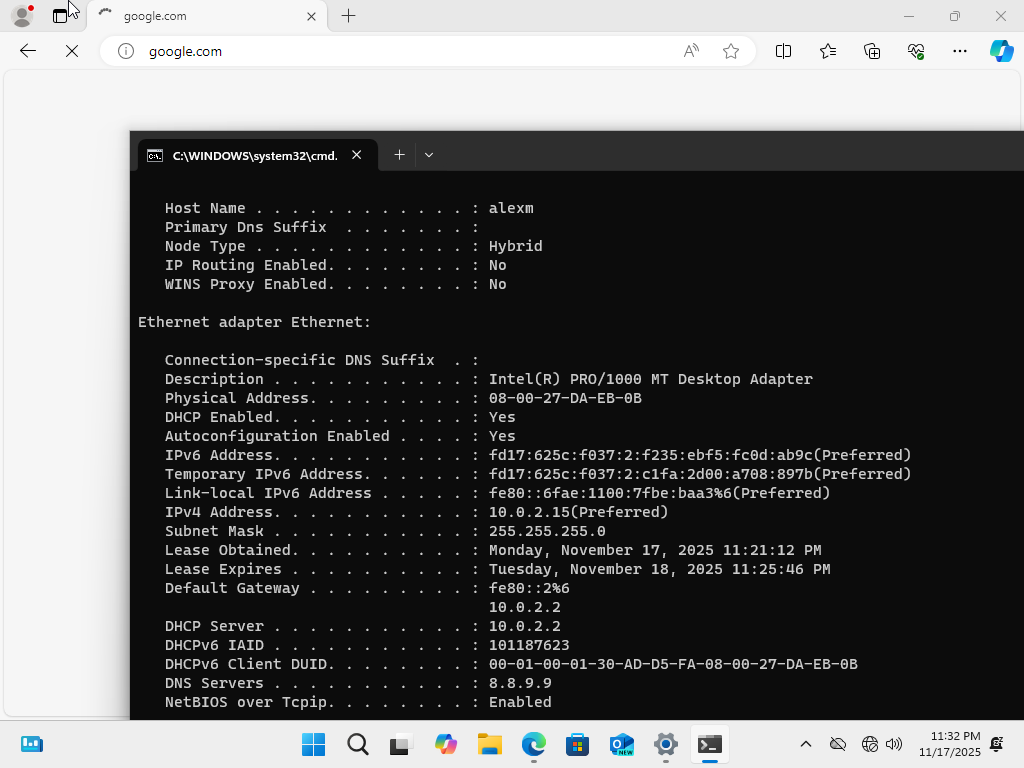
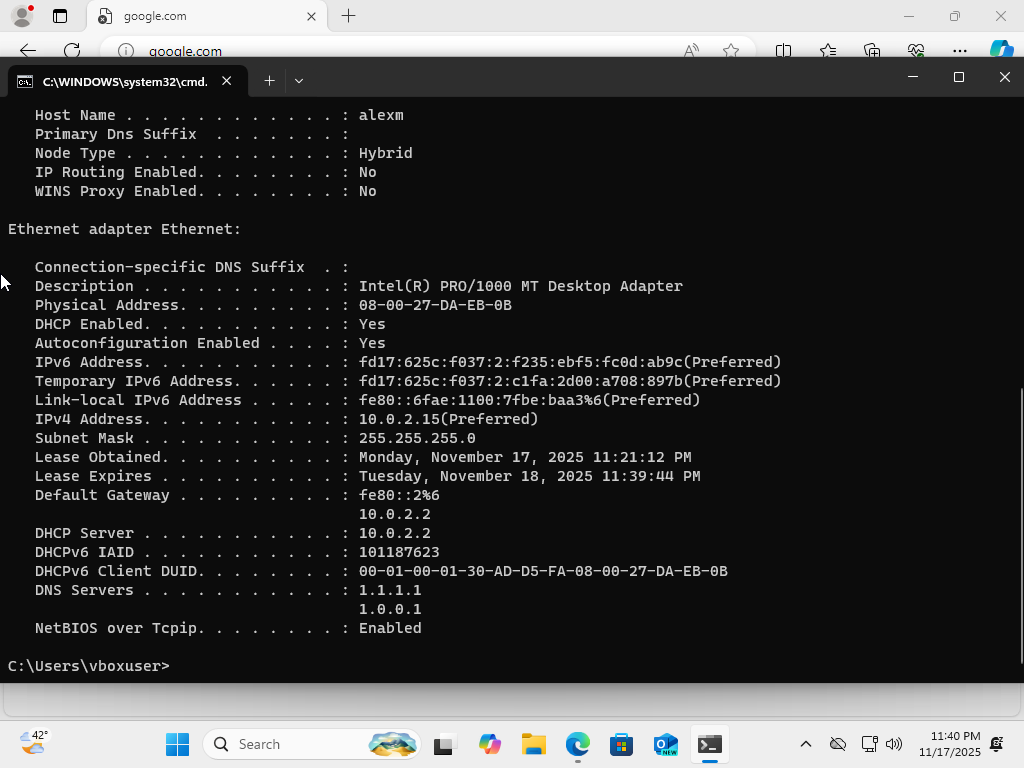
- ipconfig /all
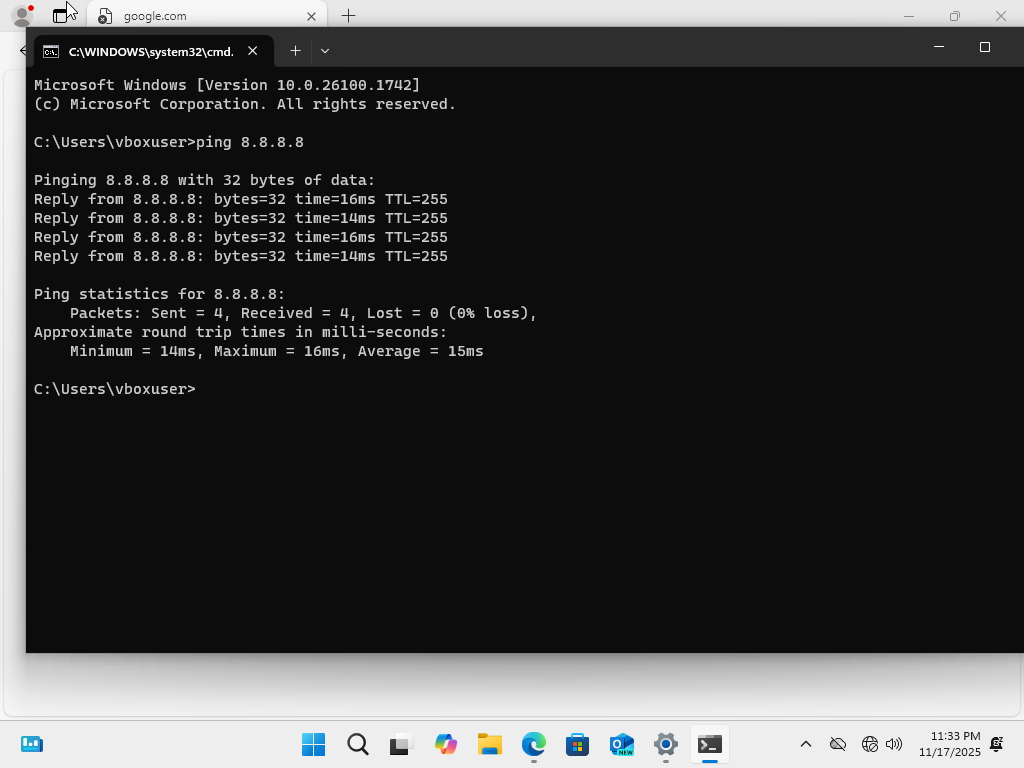
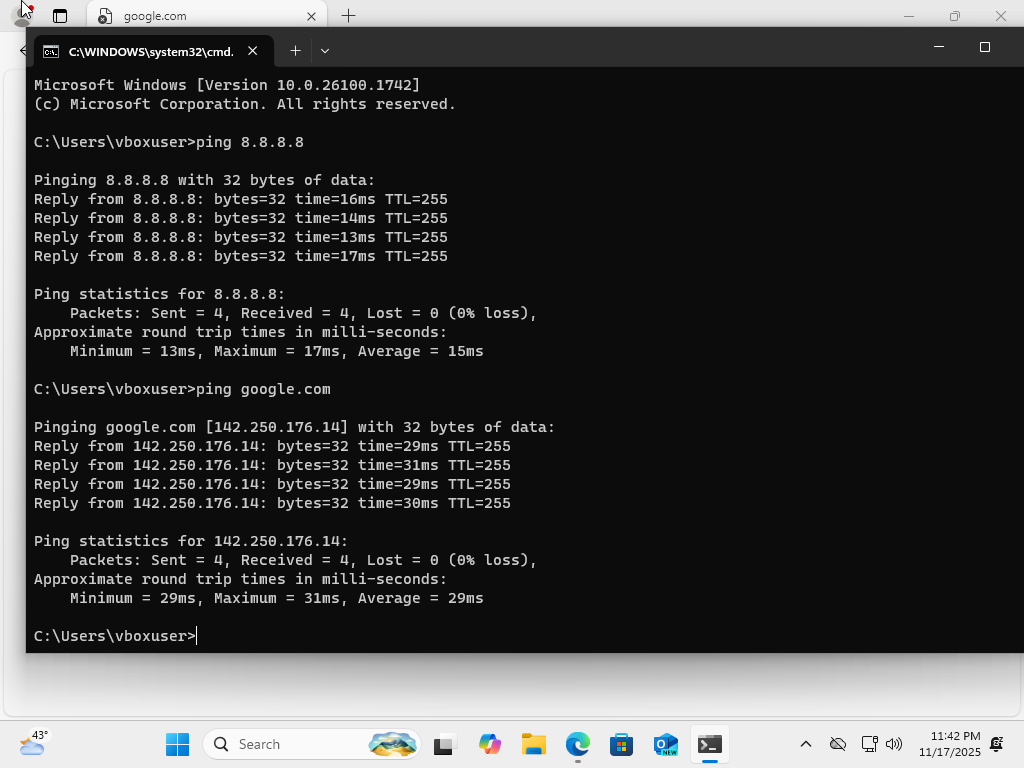
- ping 8.8.8.8
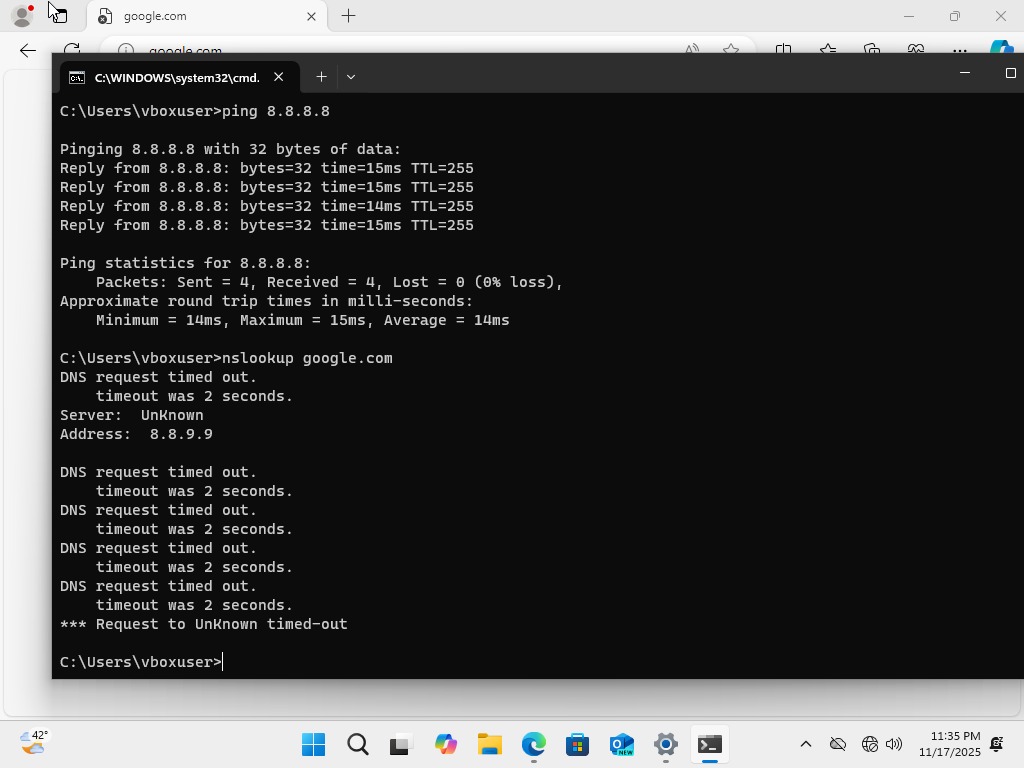
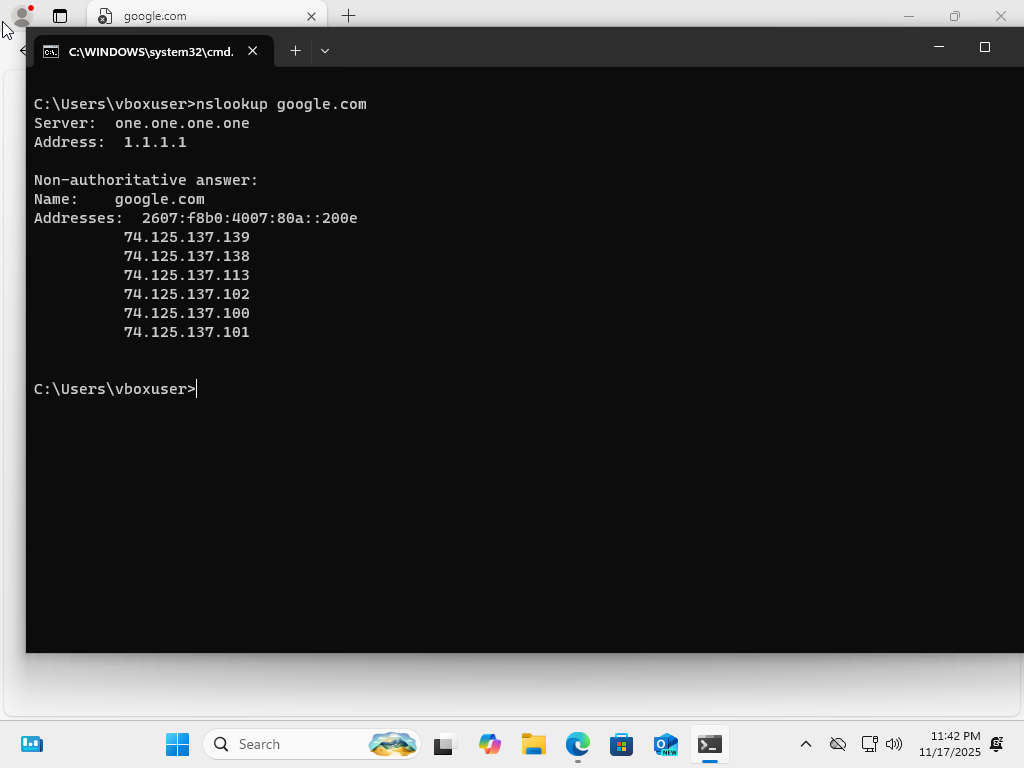
- nslookup google.com
Conclusion
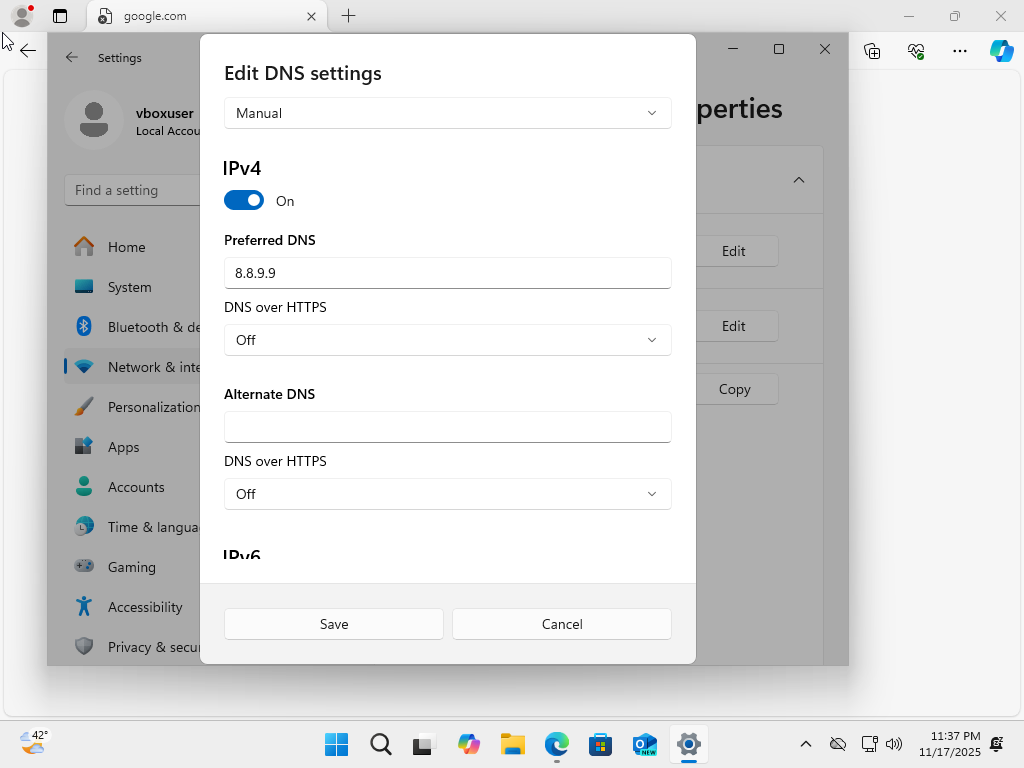
Ping to IP works, but DNS name fails. Issue traced to incorrect DNS entry.
Fix the Problem
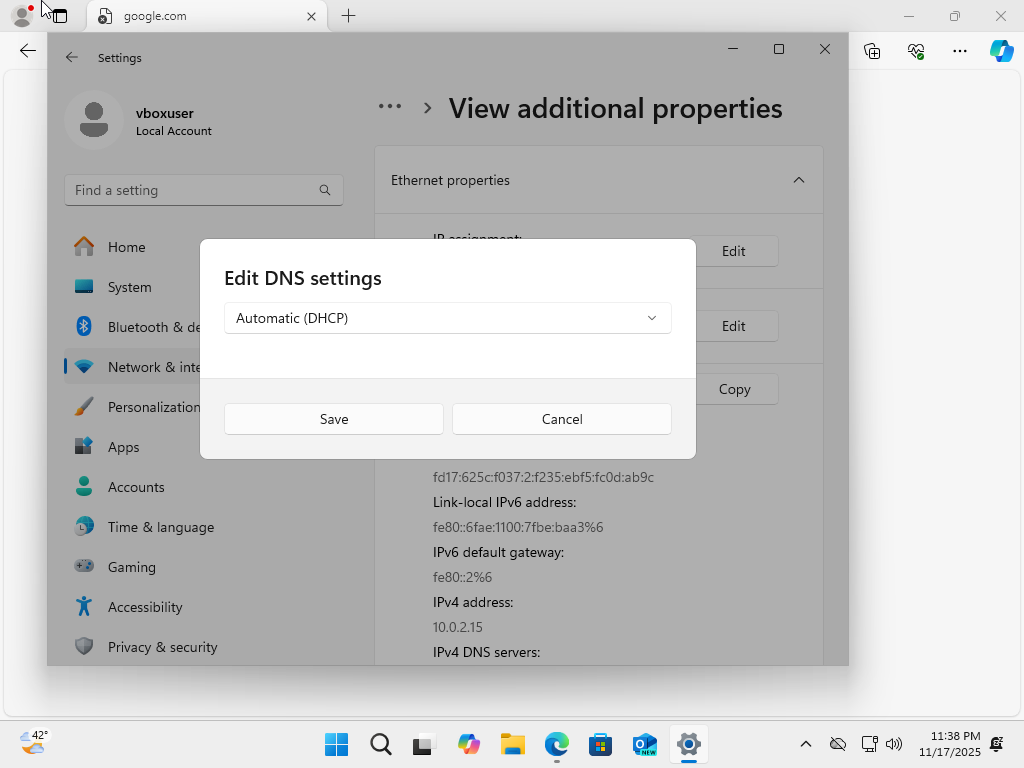
- Go into network adapter settings and adjust DNS settings to DHCP
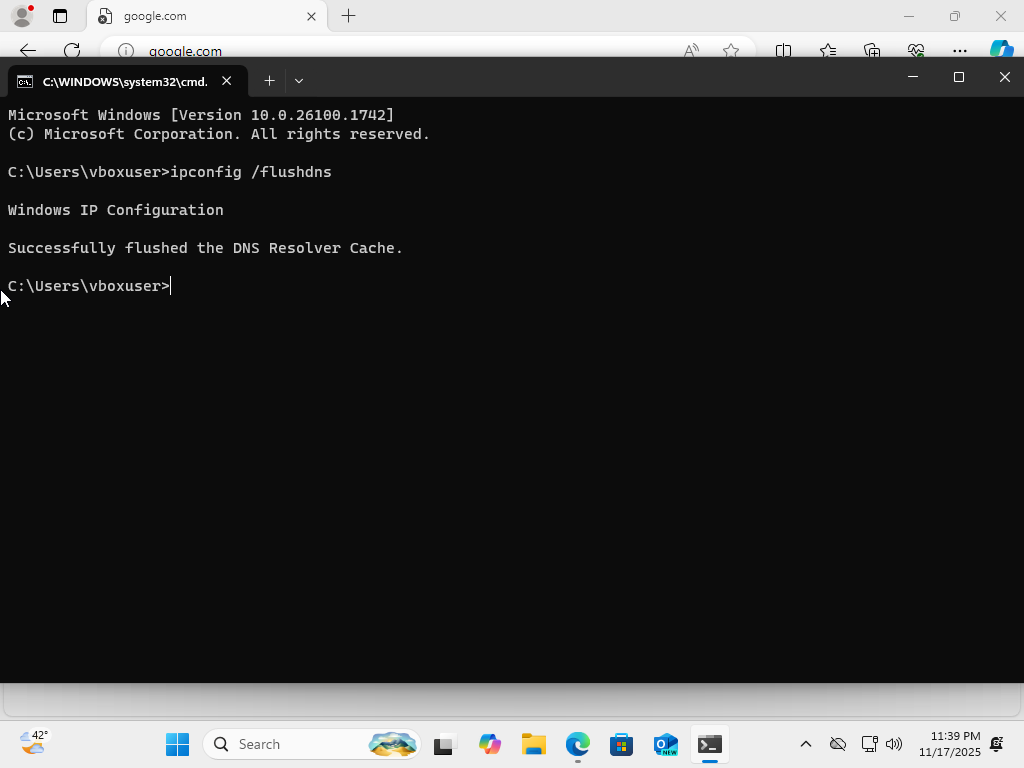
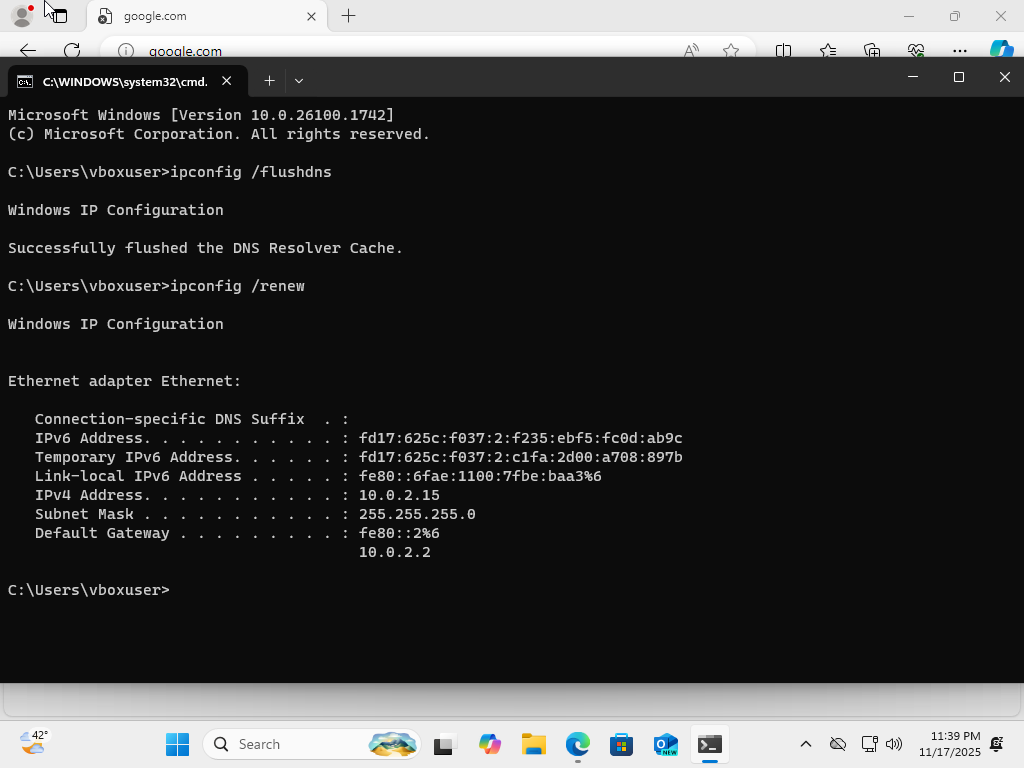
- ipconfig /flushdns
- ipconfig /renew
- ping 8.8.8.8
- nslookup google.com
Verify the Solution
Scenario 2: IP Address Conflict
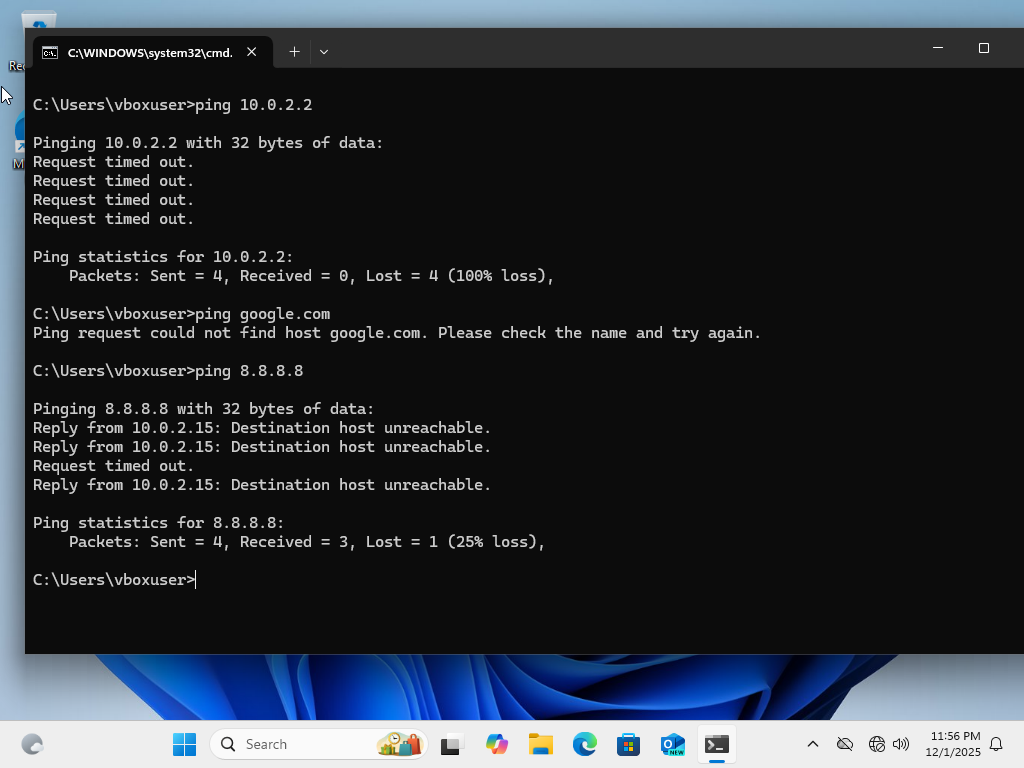
Problem: The workstation randomly loses connectivity and shows timeouts when trying to reach the network gateway or external sites. This points to a possible IP address conflict on the network.
🎥 Walkthrough Video
Watch a full walkthrough of the IP conflict troubleshooting below:
Step by Step Diagnosis:
🛠️ Test Theory to Confirm the Problem
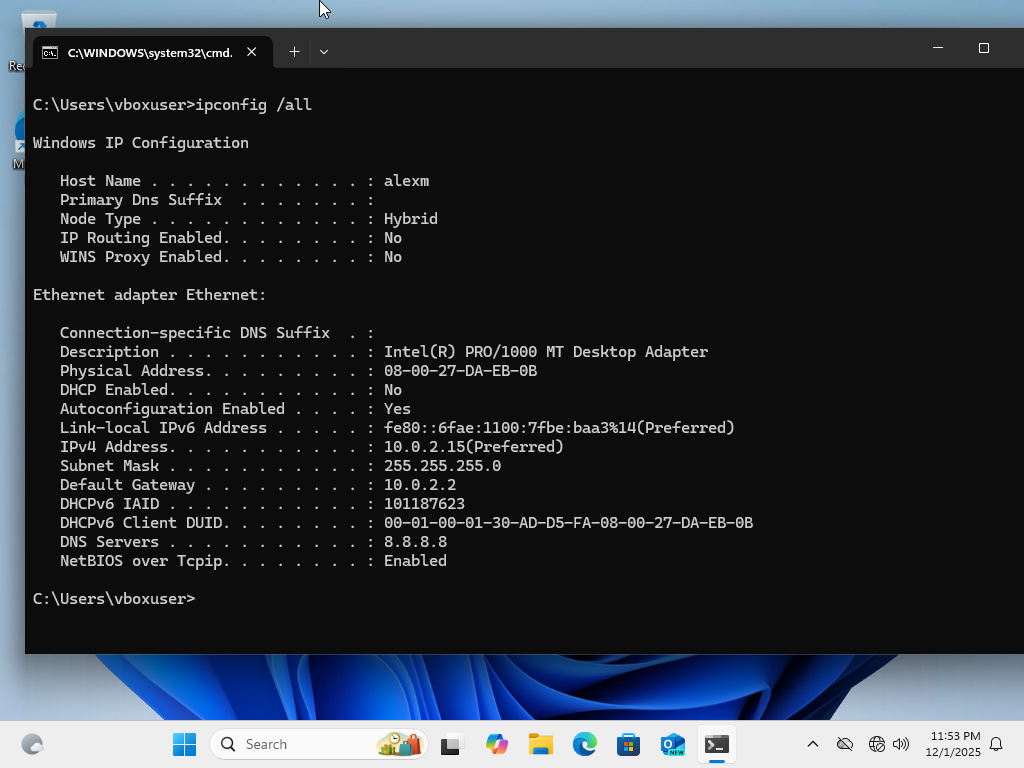
- ipconfig /all
- ping 10.0.2.2 (default gateway)
- ping google.com
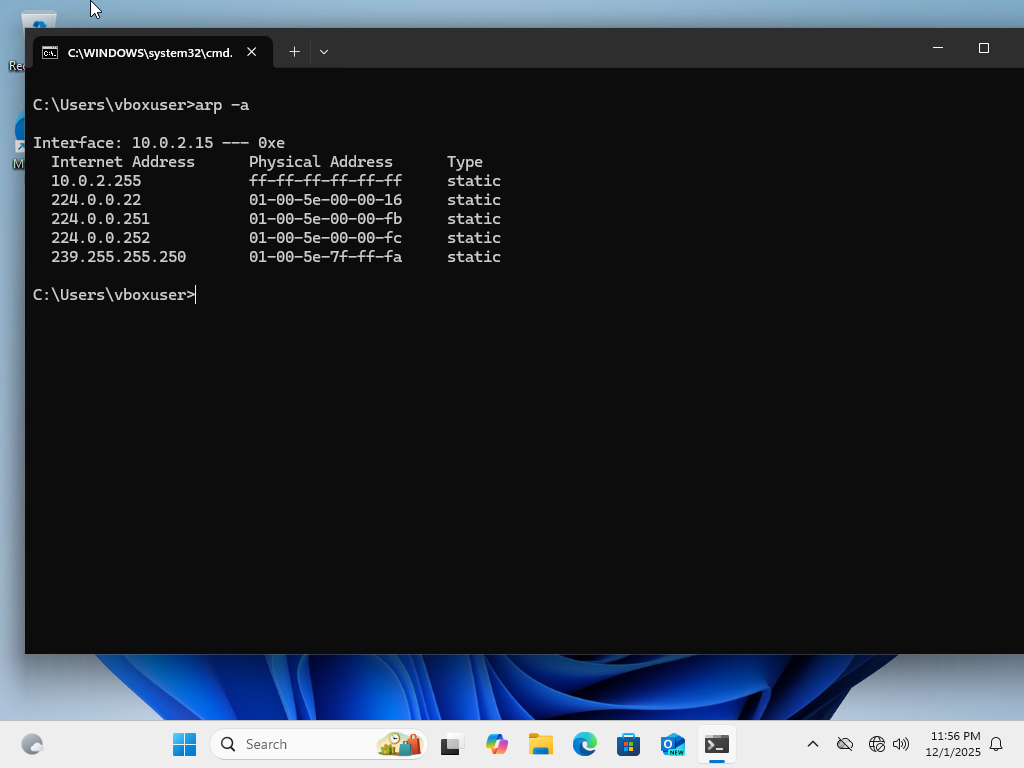
- arp -a (optional check for conflicting MAC entries)
Conclusion
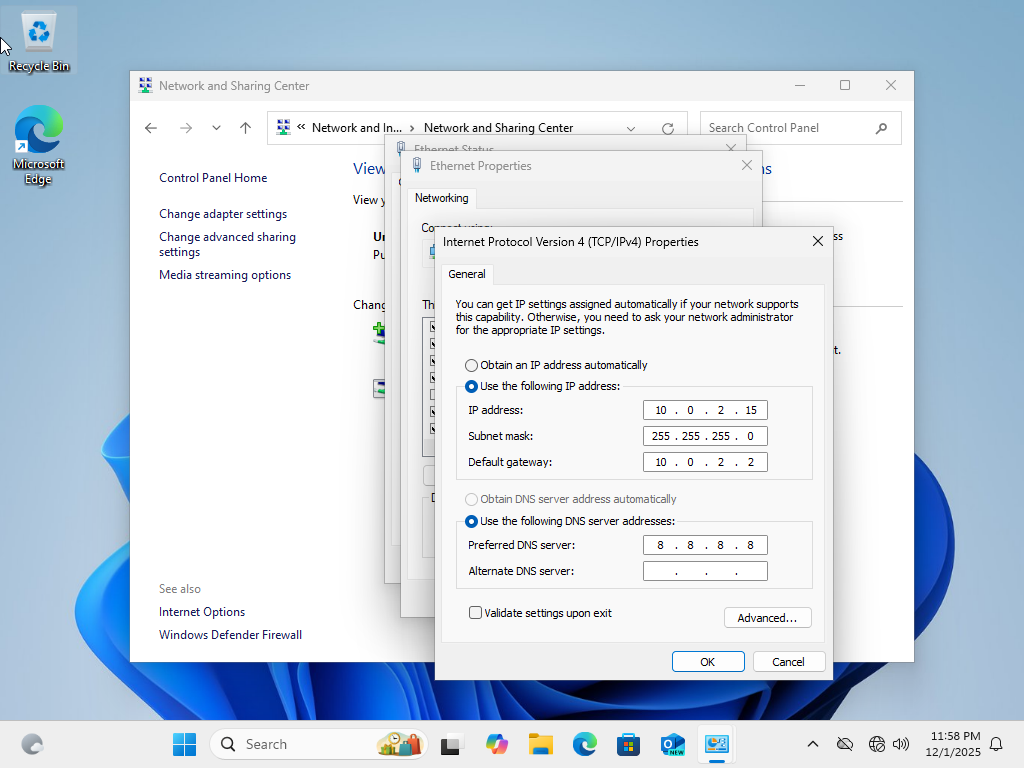
Pings to the gateway and external hosts show unreachable messages and packet loss, while ipconfig /all reveals a manually assigned IP that matches another device on the network. This confirms an IP address conflict.
Fix the Problem
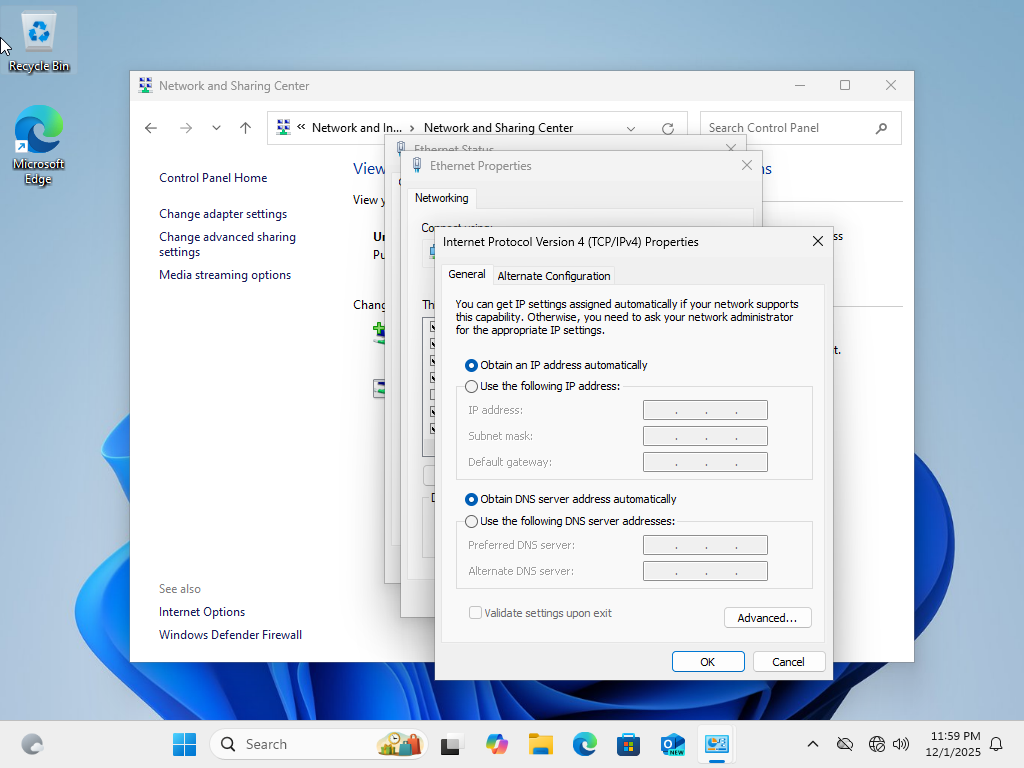
- Open the network adapter IPv4 settings and switch IP and DNS back to DHCP (Obtain an IP address automatically).
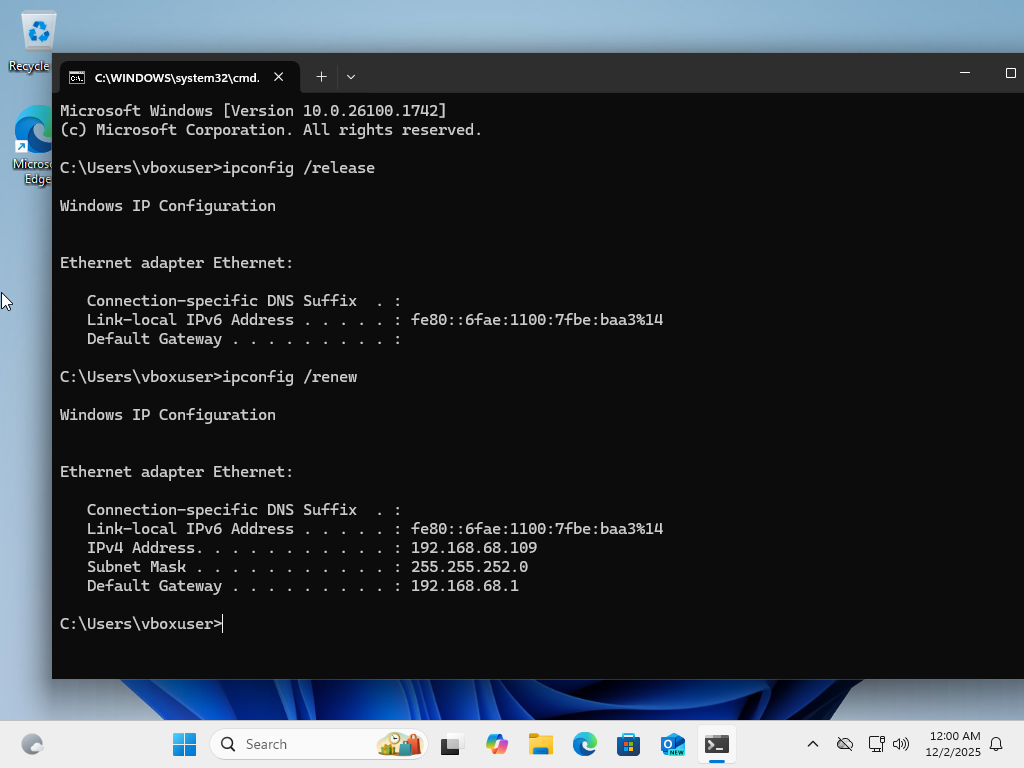
- ipconfig /release
- ipconfig /renew
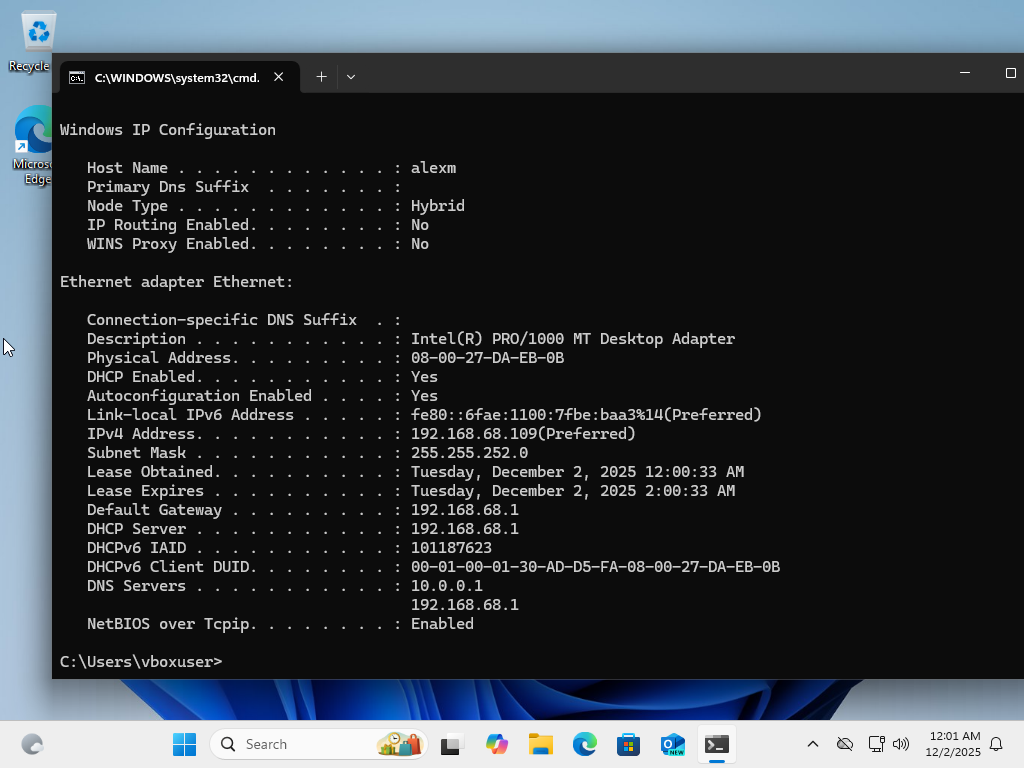
- ipconfig /all (confirm a new, unique IP address is assigned)
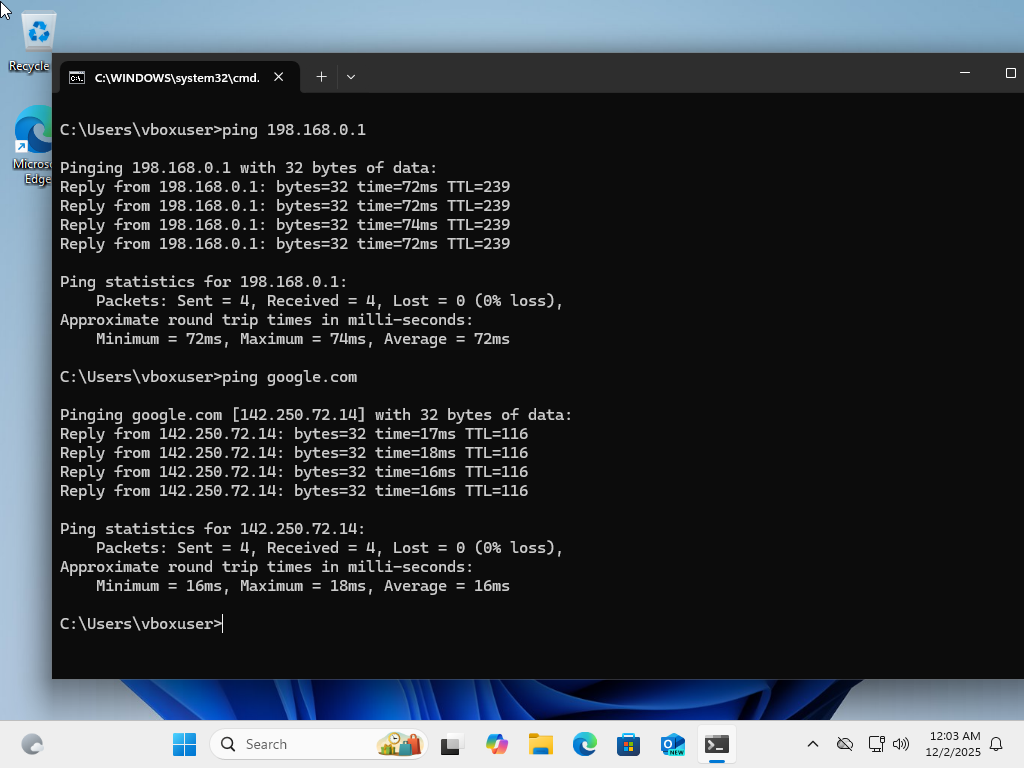
- ping 10.0.2.2
- ping google.com
Verify the Solution
Scenario 3: APIPA / 169.254 Address (DHCP Failure)
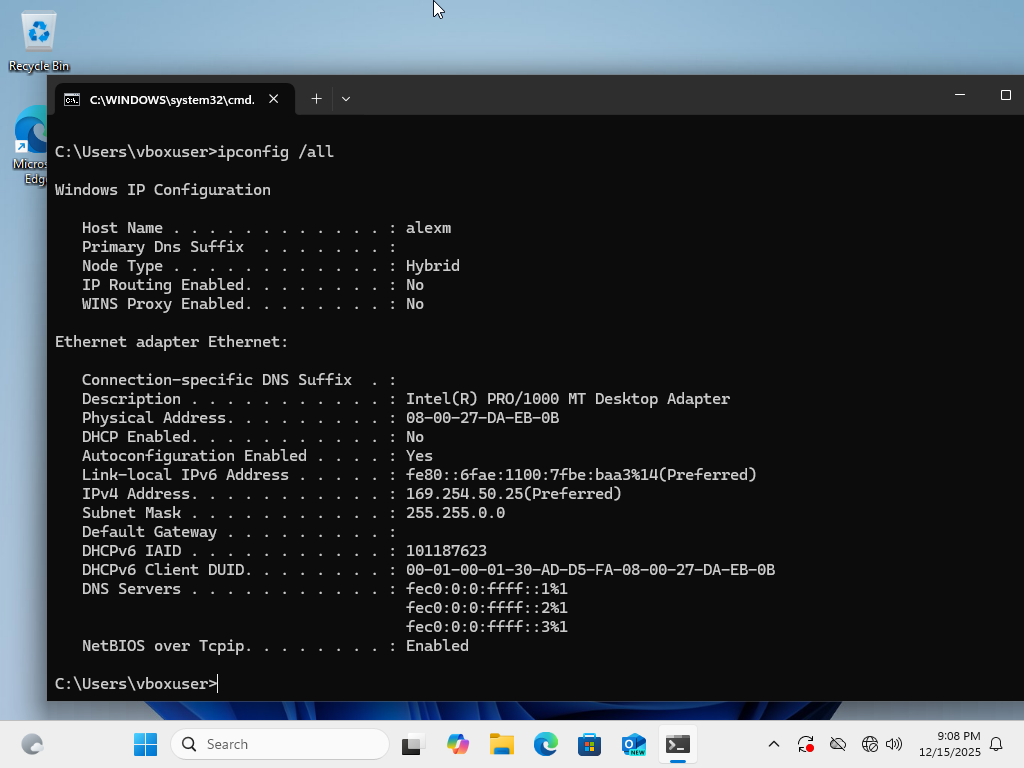
Problem: The workstation assigns itself a 169.254.x.x address with no default gateway, which indicates a failure to obtain a valid IP configuration from DHCP and results in no network or internet connectivity.
🎥 Walkthrough Video
Watch a full walkthrough of the APIPA and DHCP troubleshooting below:
Step by Step Diagnosis:
🛠️ Test Theory to Confirm the Problem
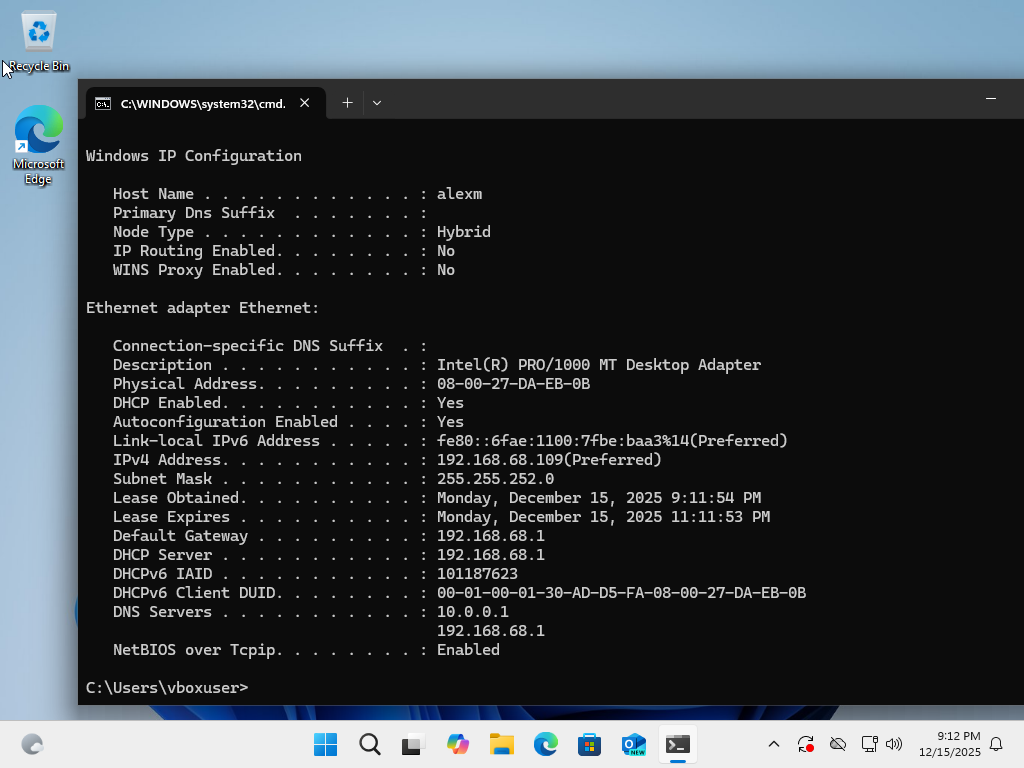
- ipconfig /all
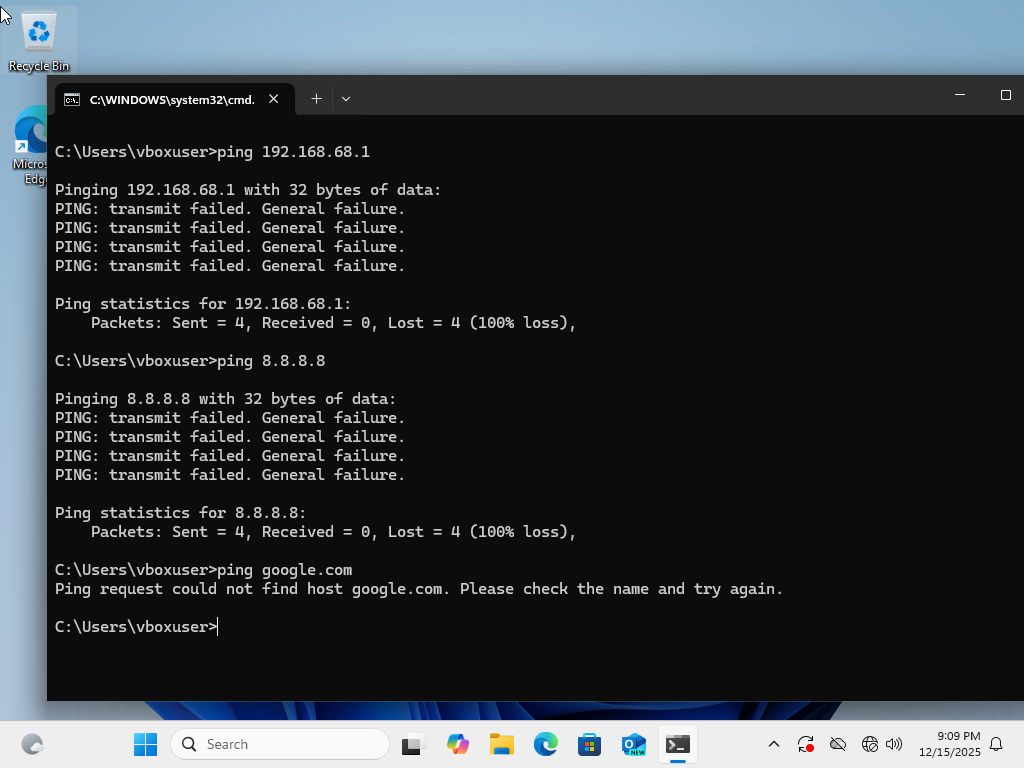
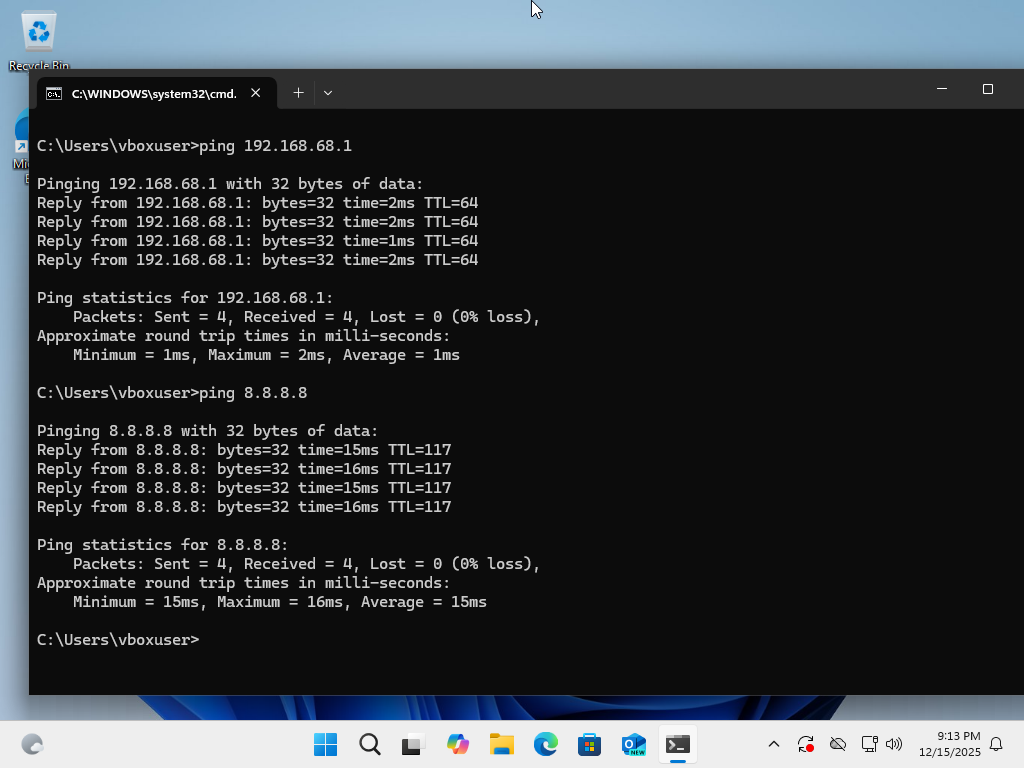
- ping 192.168.68.1 (default gateway)
- ping 8.8.8.8
- ping google.com
Conclusion
The system is assigned a 169.254.x.x address with no default gateway, which indicates a DHCP failure. Without a valid gateway or DNS configuration, the workstation is isolated and cannot reach the local network or the internet.
Fix the Problem
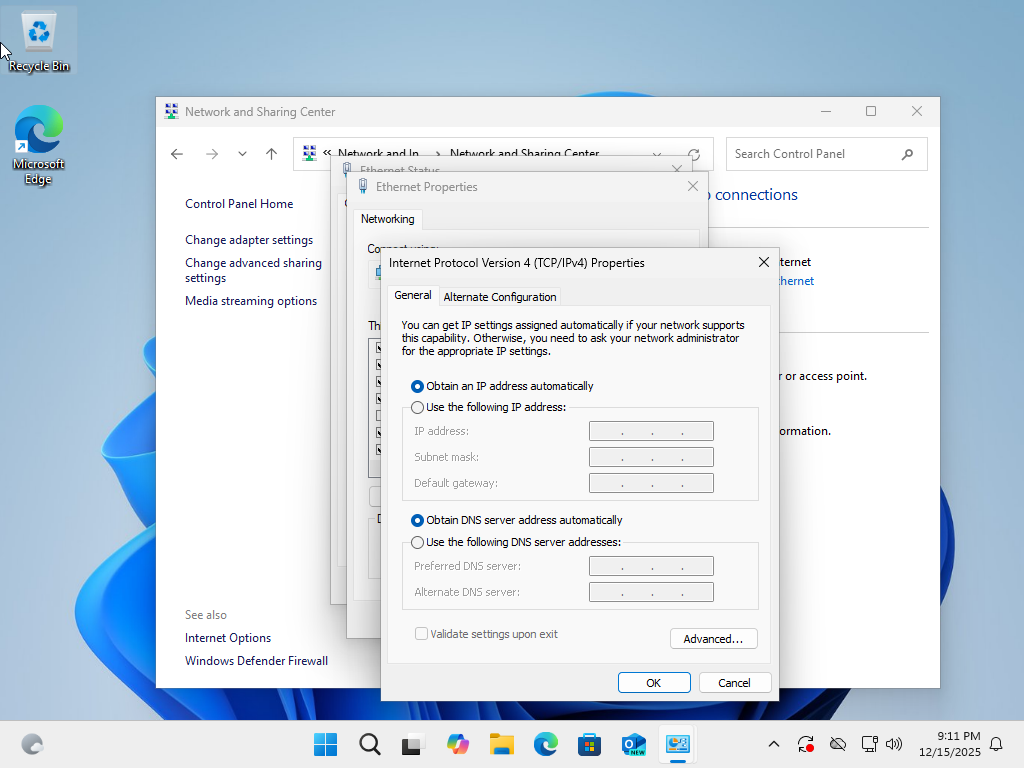
- Open the network adapter IPv4 settings and switch IP and DNS back to DHCP (Obtain an IP address automatically).
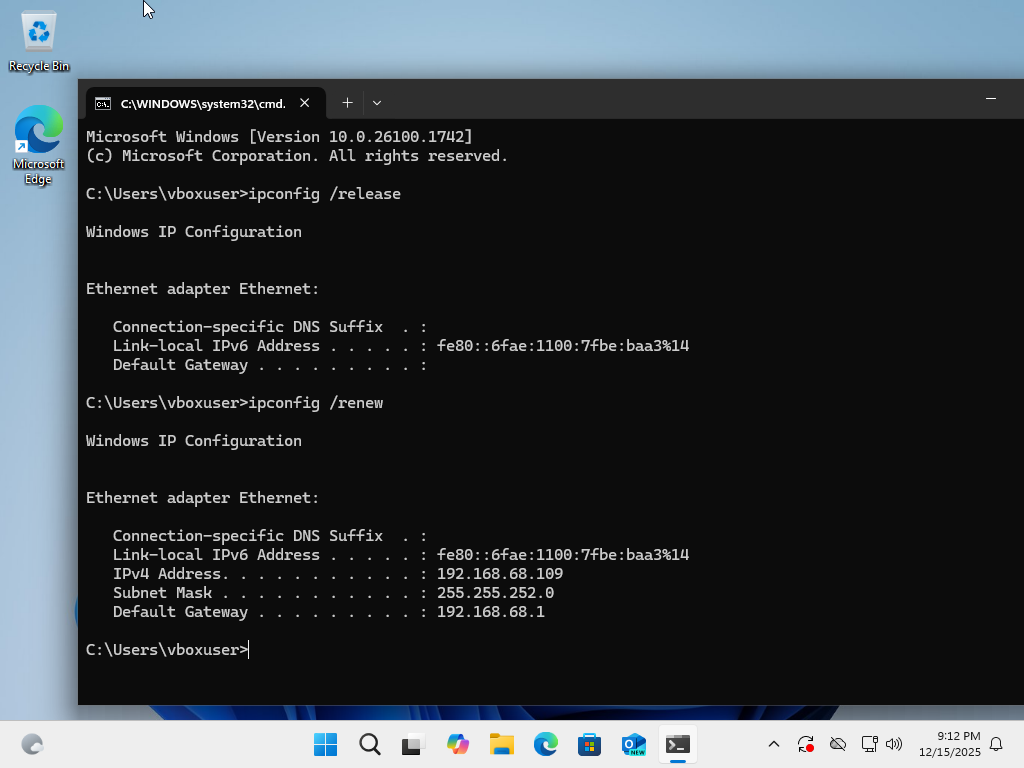
- ipconfig /release
- ipconfig /renew
- ipconfig /all (confirm a valid DHCP-assigned IP and default gateway)
- ping 192.168.68.1
- ping 8.8.8.8
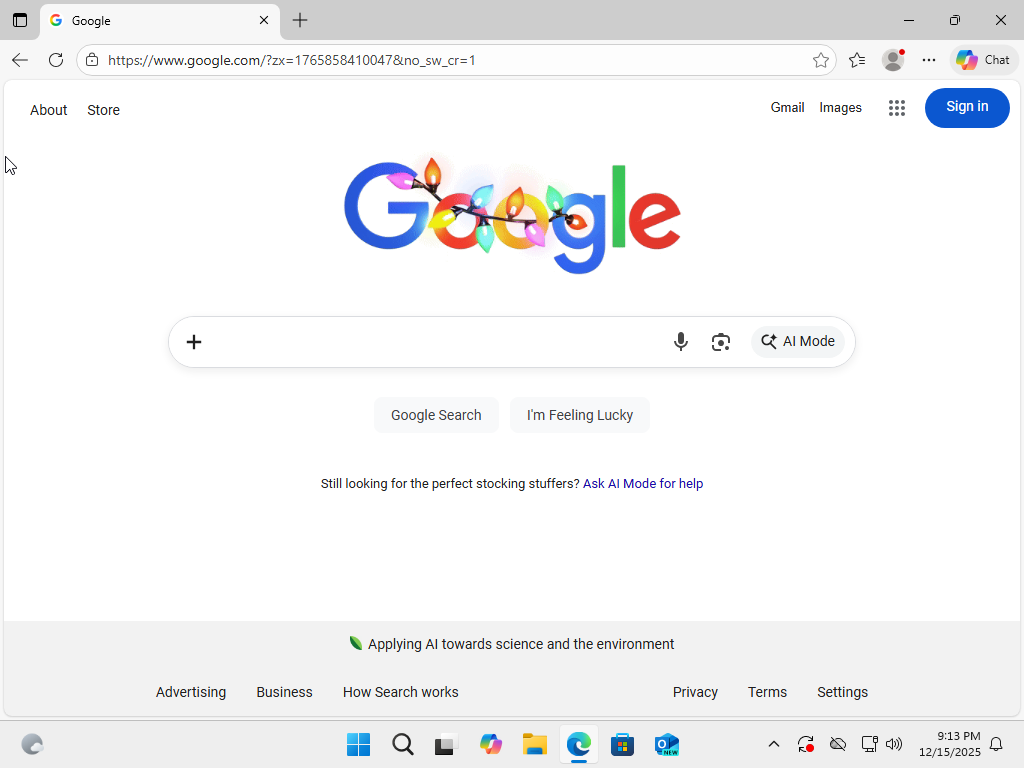
- ping google.com
Verify the Solution
Scenario 4: Proxy Misconfiguration
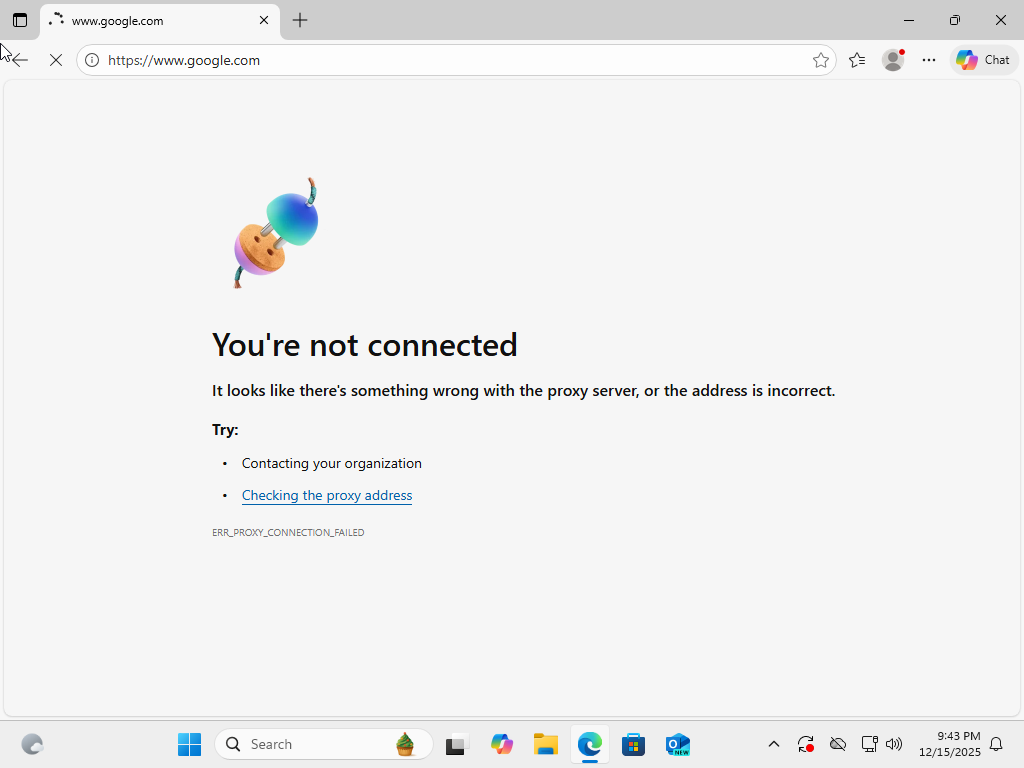
Problem: Ping tests work, but websites will not load in the browser. This usually points to an application-level issue instead of a network-layer issue.
🎥 Walkthrough Video
Watch a full walkthrough of the proxy troubleshooting below:
Step by Step Diagnosis:
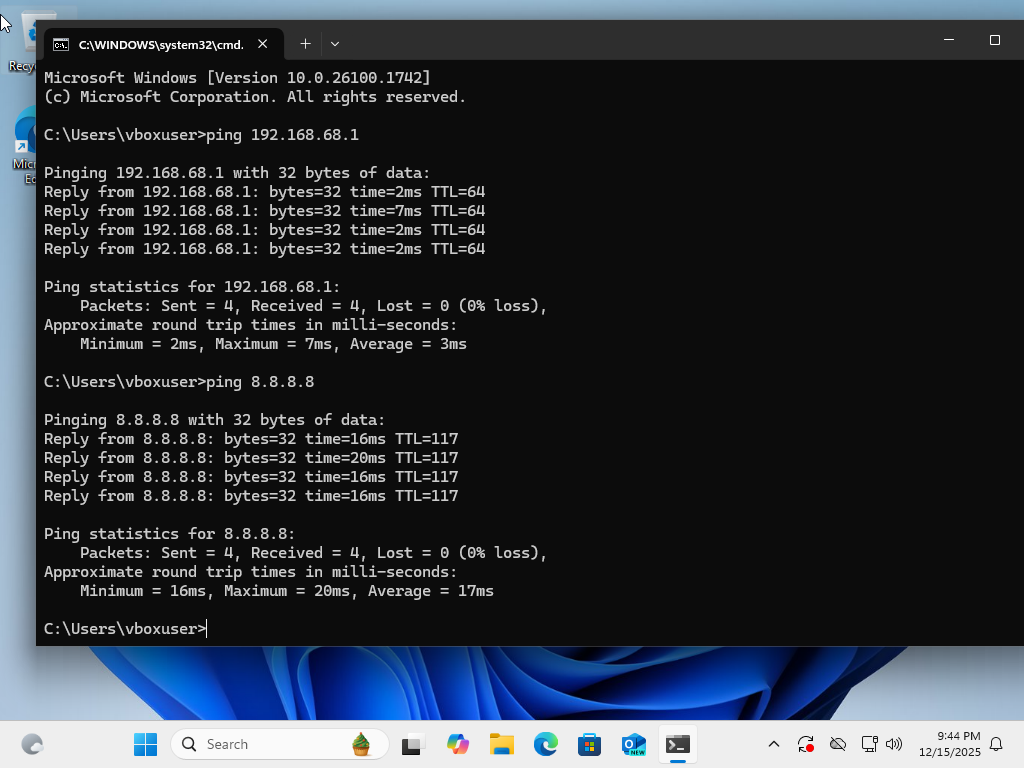
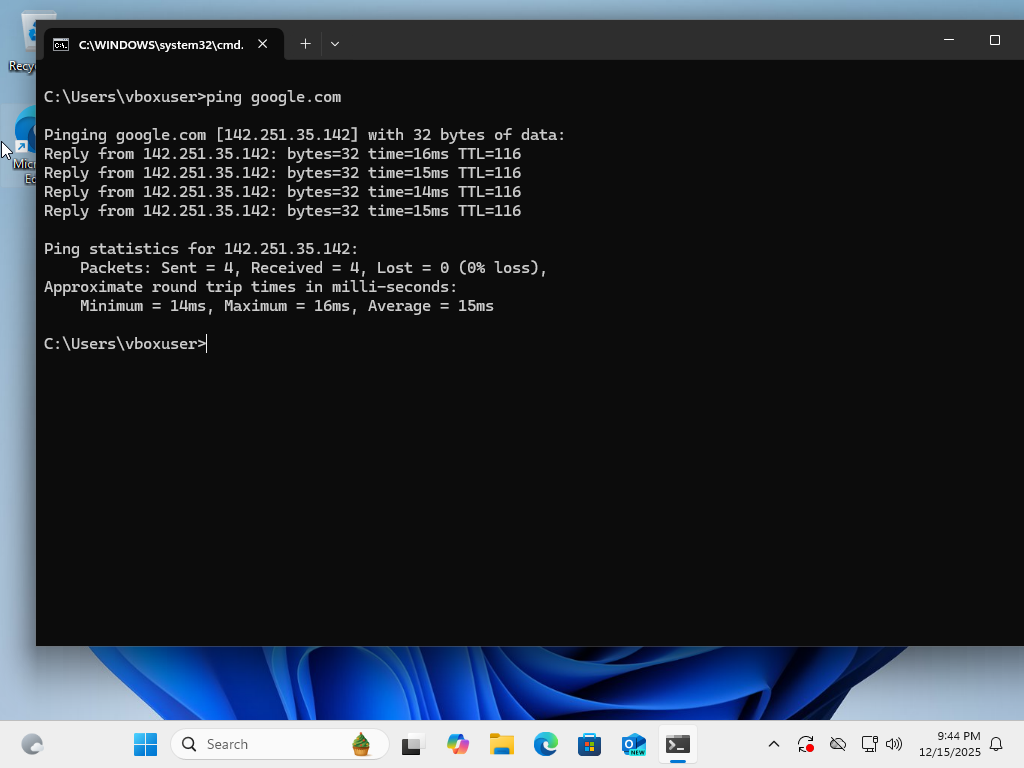
🛠️ Test Theory to Confirm the Problem
- ping 192.168.68.1 (default gateway)
- ping 8.8.8.8
- ping google.com
- Test browser access (google.com fails to load)
Conclusion
Because pings to the gateway, an external IP, and a domain name all succeed, the network connection and DNS resolution are working. The browser failure points to a proxy configuration issue at the application level.
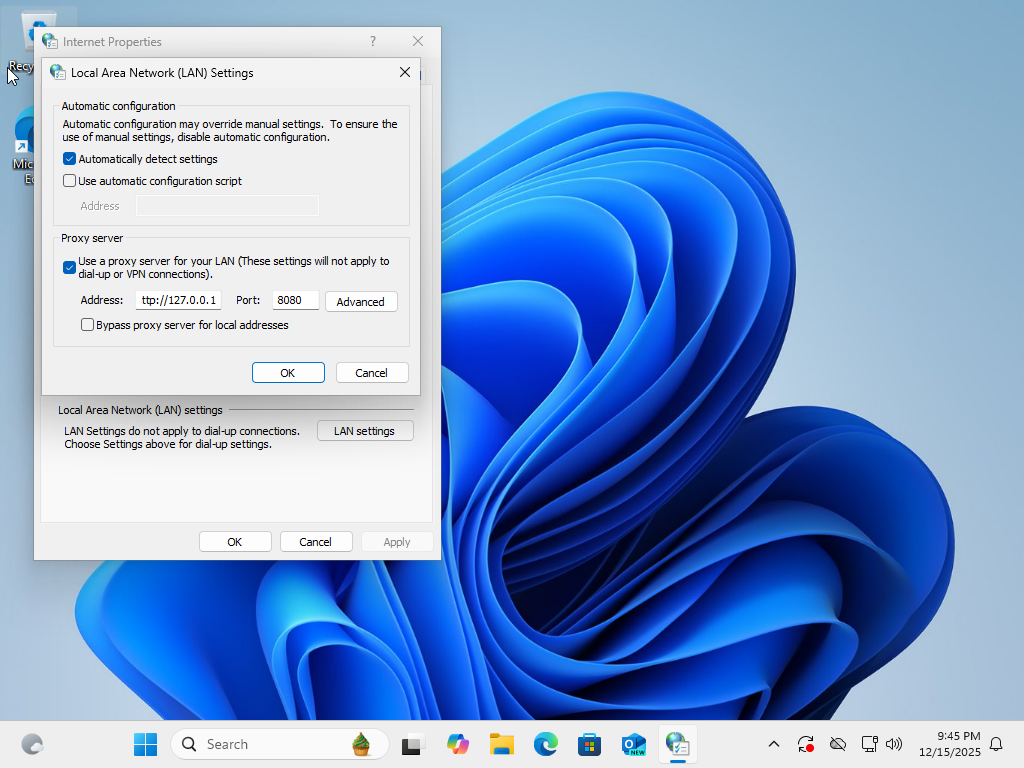
Fix the Problem
- Open Internet Options → Connections → LAN settings and disable the proxy (uncheck “Use a proxy server for your LAN”).
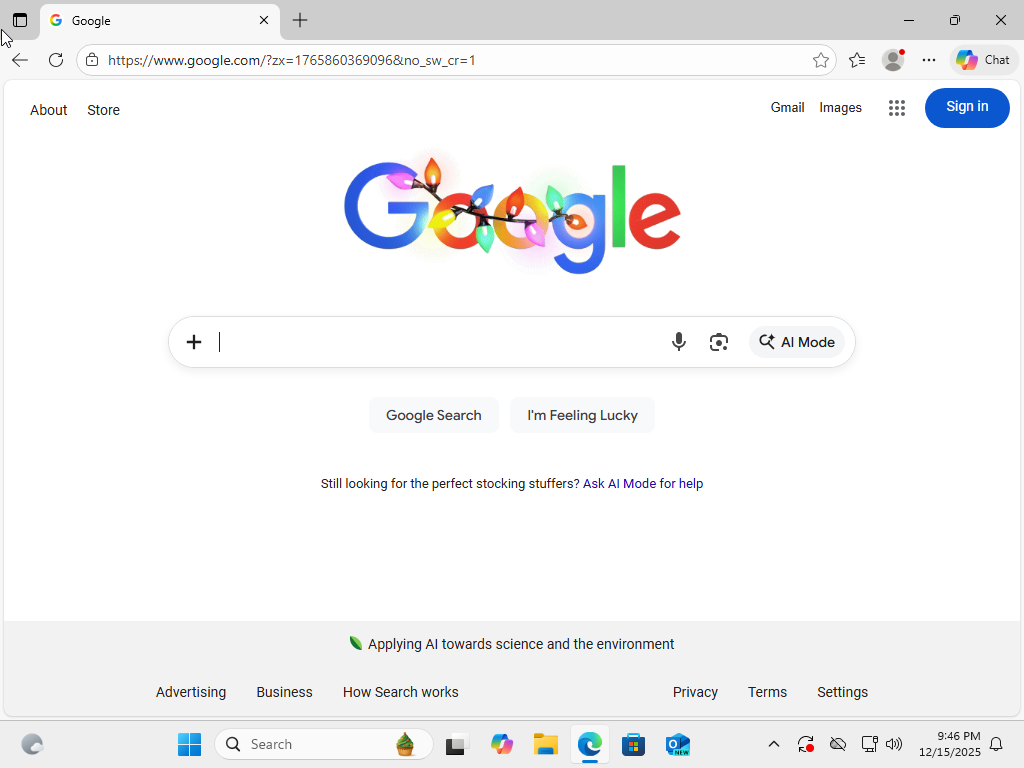
- Refresh the browser and retry the website.
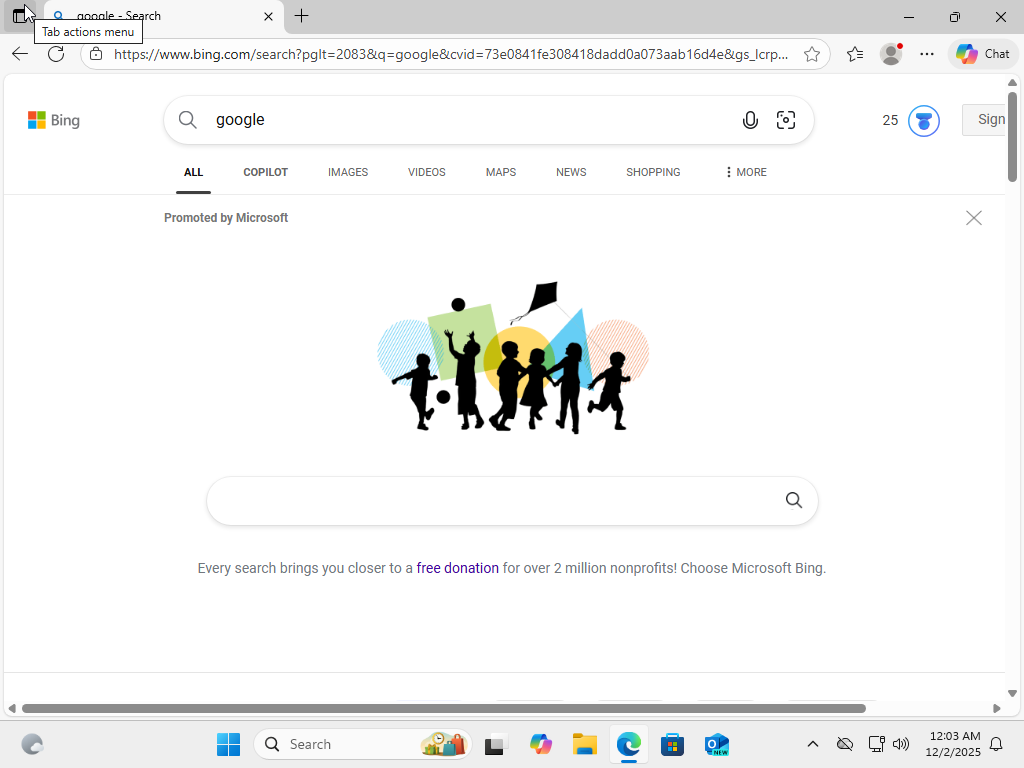
- Confirm websites load normally in the browser
Verify the Solution
Lab Summary
This lab demonstrates a structured approach to help desk troubleshooting, starting with basic connectivity checks and moving through DNS, IP configuration, DHCP, and application-level issues. Each scenario follows a diagnose, fix, and verify workflow commonly used in real IT support environments.